
To get to the invoice view, just simply press on Invoices from the left menu.
Here you can see all the invoices in different stadiums of the process.
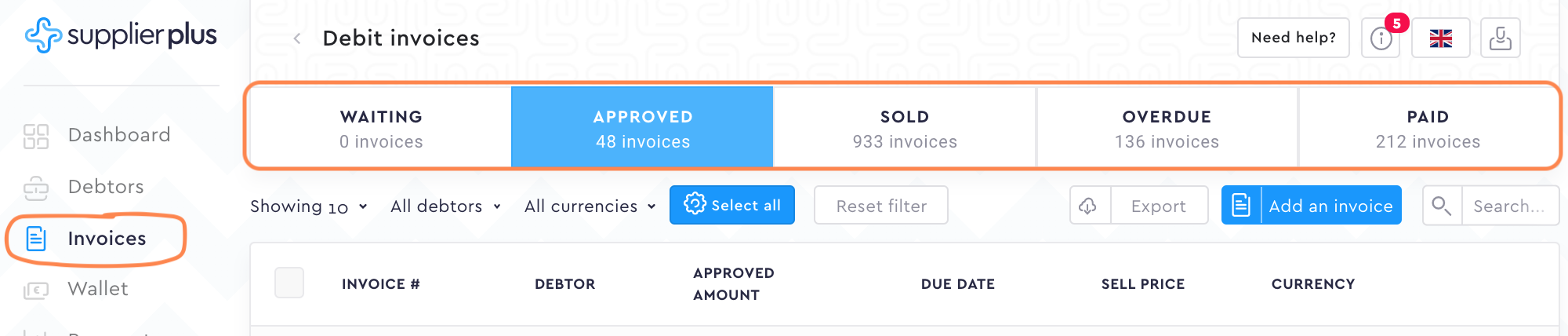
What do those different statuses mean?
Waiting - If by any chance you don't agree with invoice data or the settlement info the buyer has provided you, you can always dispute the invoices. Just select the invoice and press dispute. The info goes back to the buyer to change the invoice data or give you additional info regarding the details.
Approved - All the invoices the buyer has approved and are ready to sell.
Sold - All the invoices you have sold and haven't yet received the money from SupplierPlus. SupplierPlus will transfer you the money at the end of the next banking day at the latest.
Overdue - All the invoices you haven't sold, the expected payment date has passed and you haven't received the money yet. Instead of the original invoice due date, we take into account the expected payment date. Mainly because the original due date might be on a weekend or on a holiday. In such a case, the expected payment date will be the next business day.
Paid - As soon as SupplierPlus has cleared your payment, invoices automatically move to Paid.
Filtering.
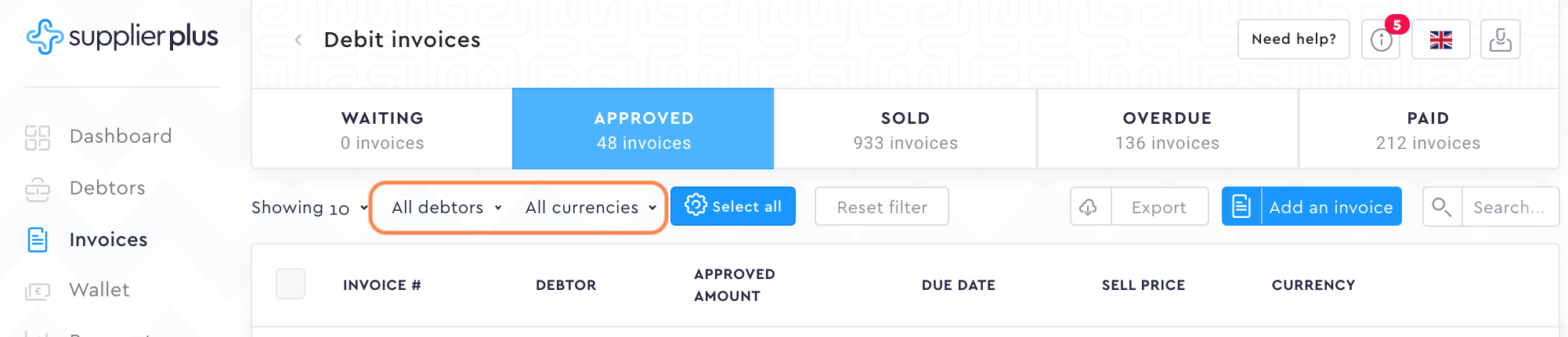
We have also hooked you up with a filtering feature. Filtering makes navigating between different invoices easier. You can apply the filter with just a couple of clicks. You can filter by buyers and currencies.
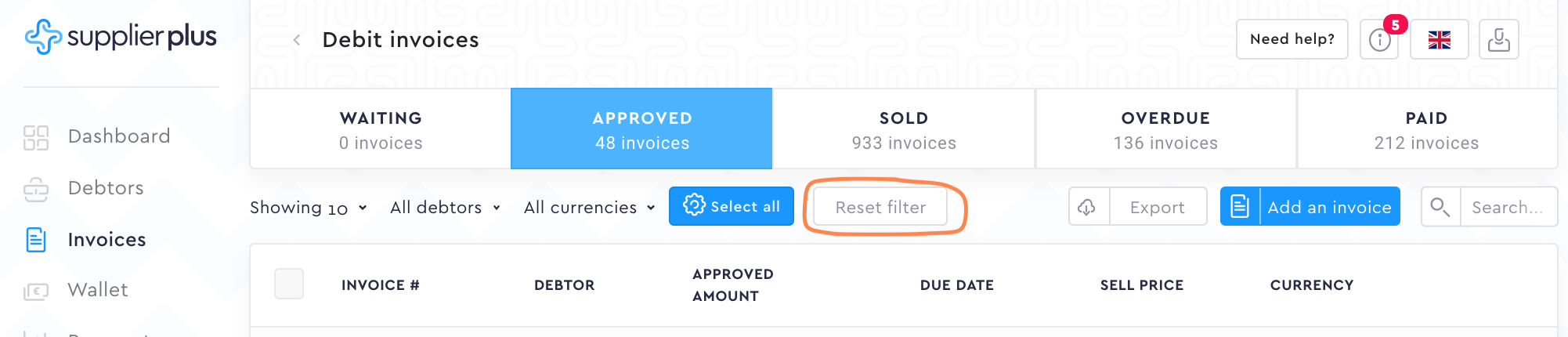
You can reset the filter also with 1 click.
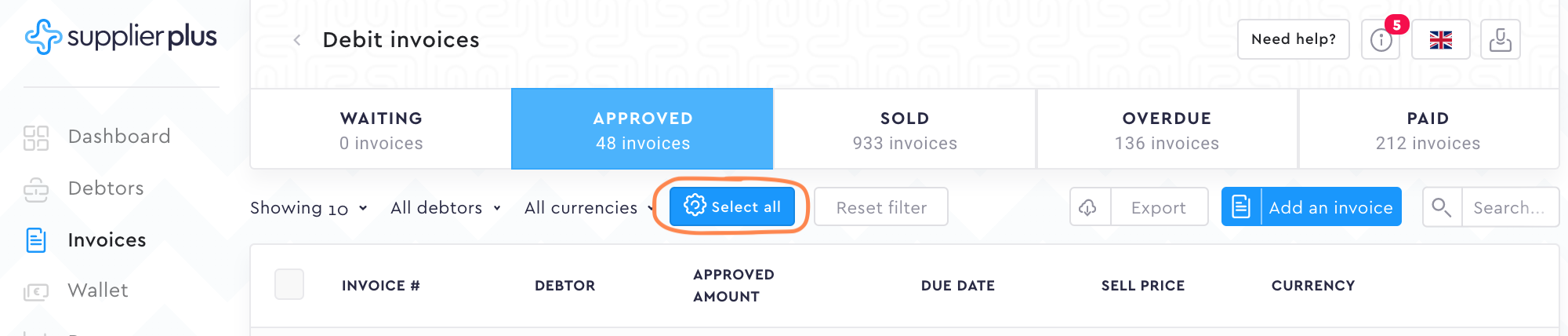
Select all button.
With this function, you can select all the invoices in the current tab with only 1 click.
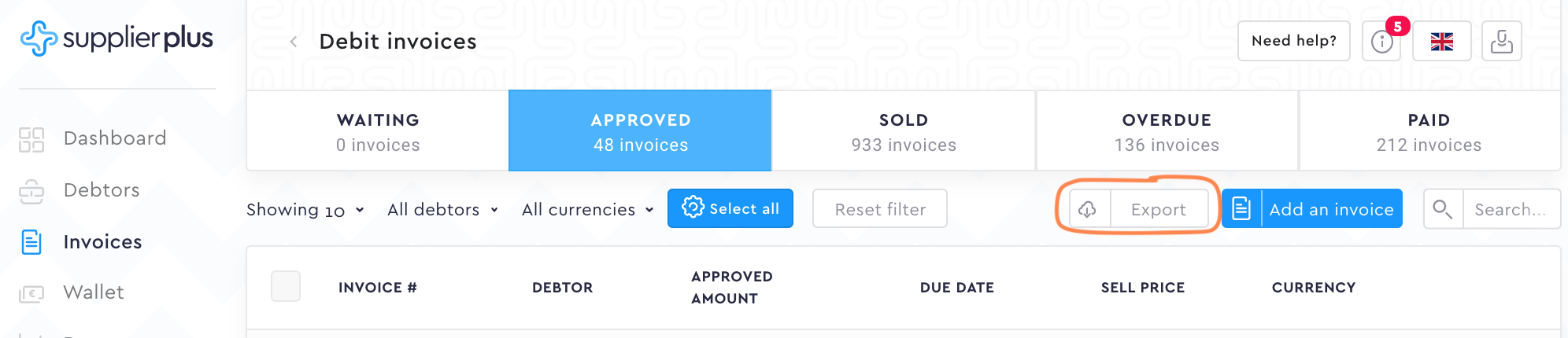
Export feature.
With this feature, you can export all the invoices tabs into CSV format. Just select which tab you would like to export (Approved, Sold etc.) and press Export.
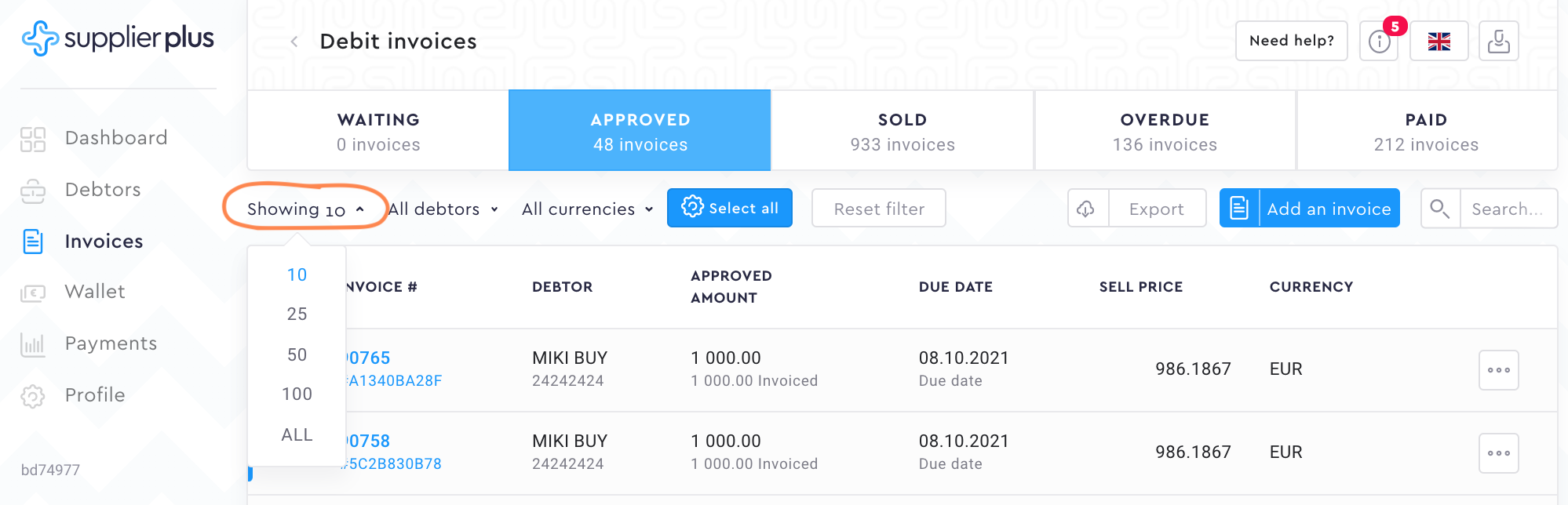
Pagination.
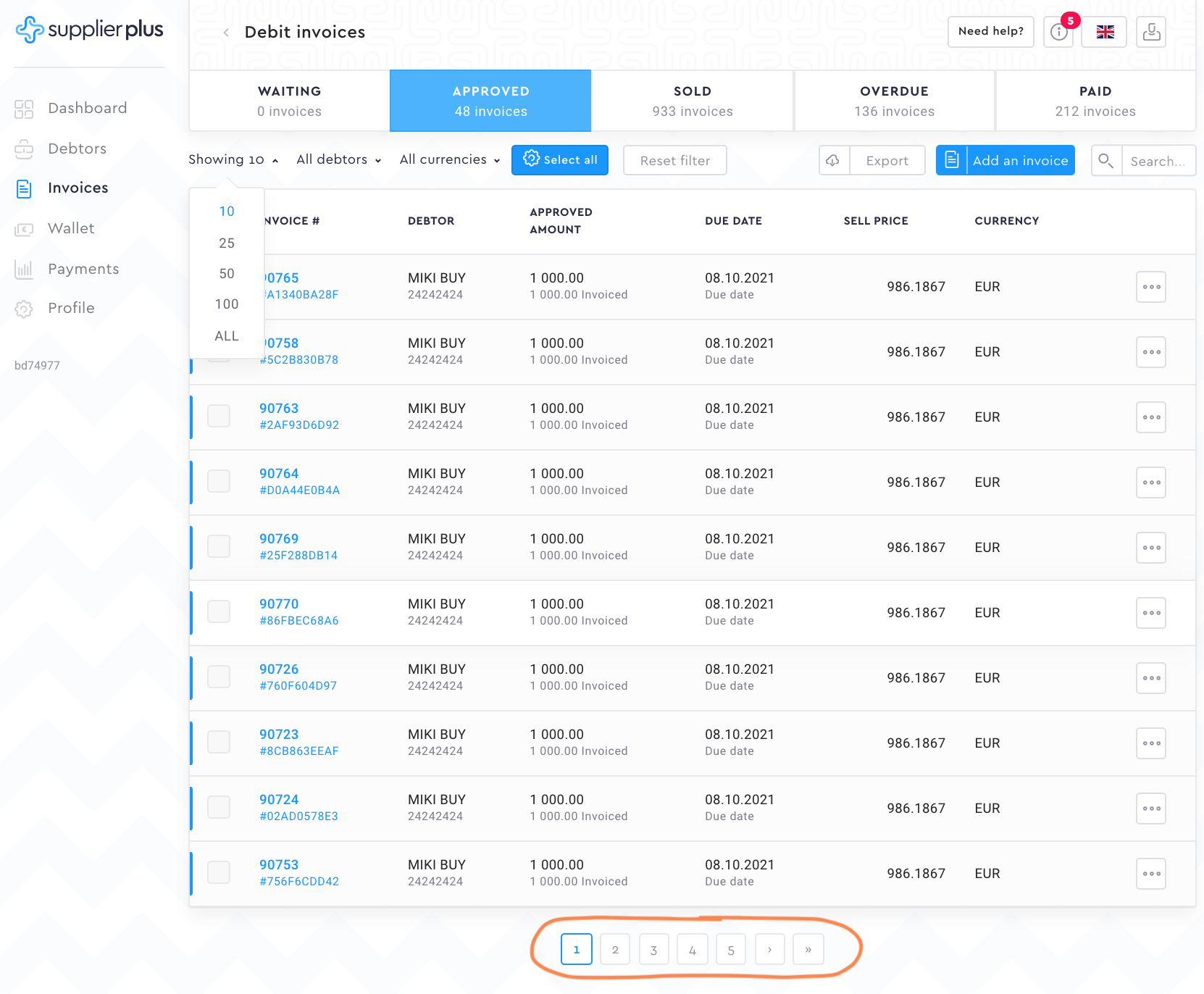
By default, we are always showing 10 invoices on one page. You can change it to more invoices on one page...
...Or just go to another page to process the invoices. It's good to have choices.
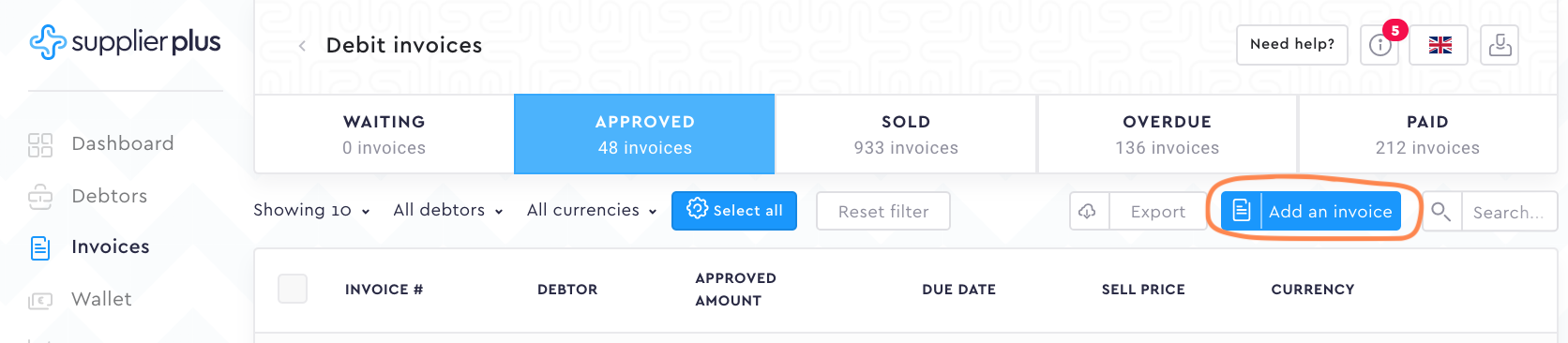
Add new invoices.
If your buyer is using a SupplierPlus Lite option, it allows you to add invoices yourself with the digitally signed invoice document.
Comments
0 comments
Please sign in to leave a comment.