
By default, in SupplierPlus, we only show absolutely necessary info at first glance when it comes to invoices view. If you feel that you want to see more, then no problem, we got you covered. We also have an invoice detailed view of specific information about any given invoice on our platform.
To access the invoice detailed view, click on the invoice number.
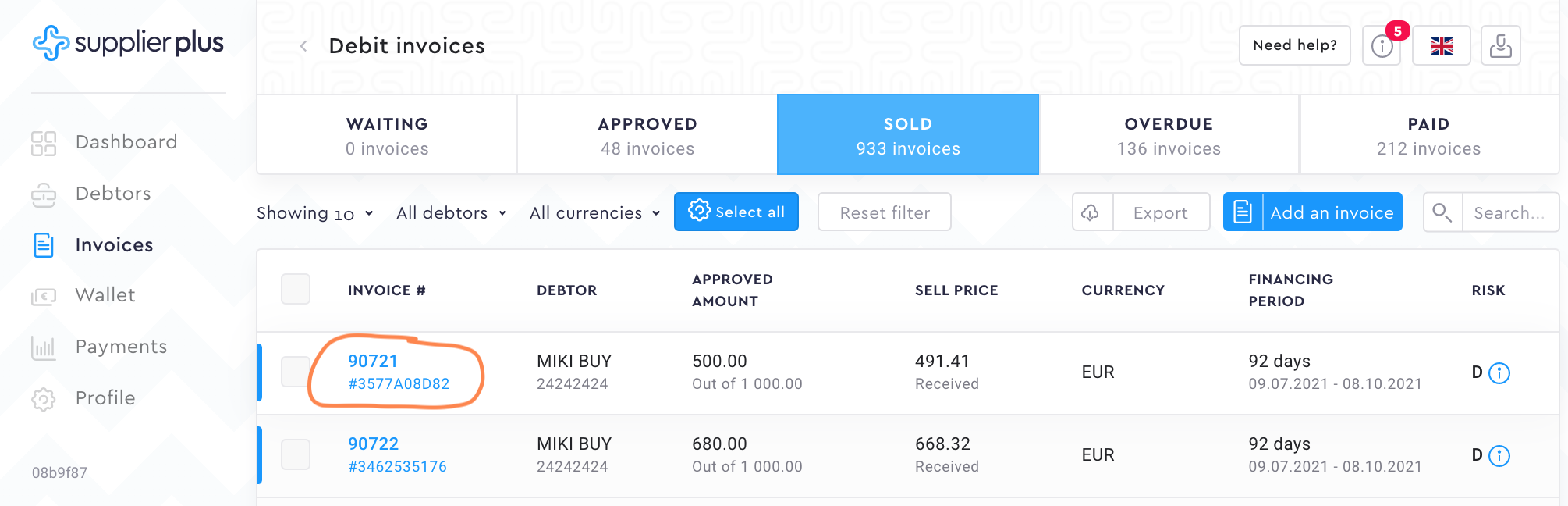
Now that you have opened a detailed view, let's go through different information segments.
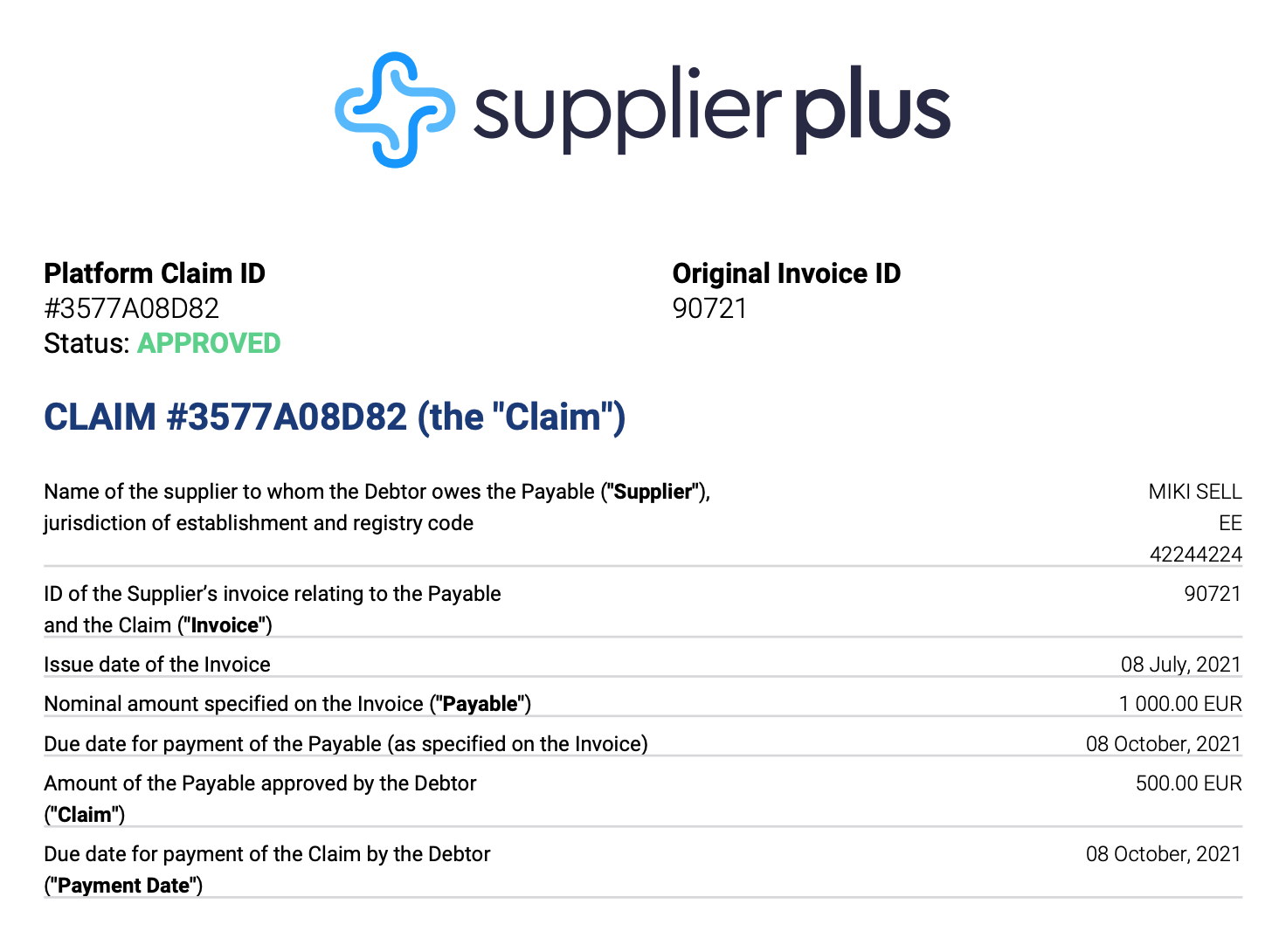
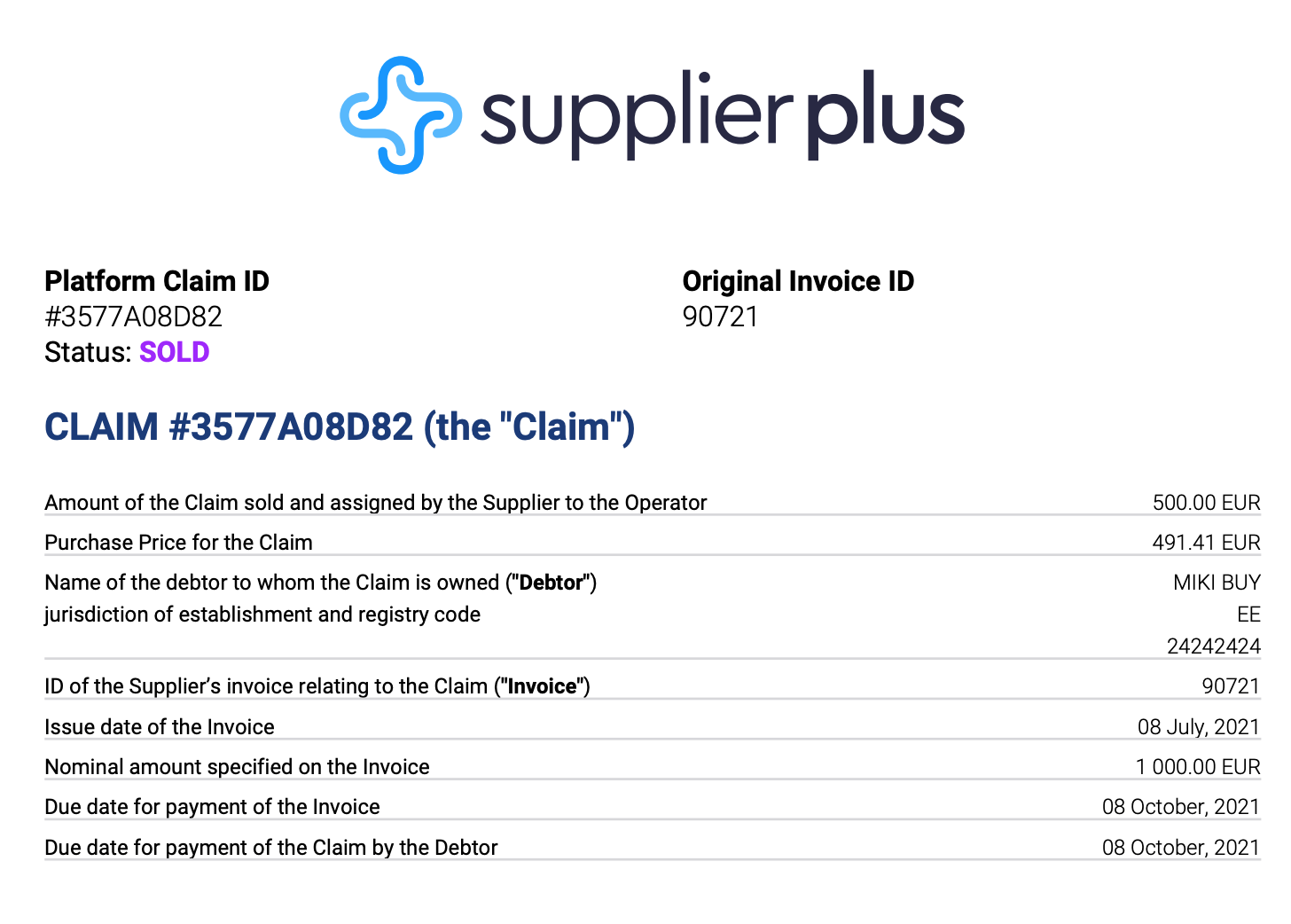
Debtor Approval Confirmation and Supplier Sale Confirmation.
After the invoices have been approved by the buyer and sold by you, you can access the confirmation documents.
Debtor Approval Confirmation is automatically created after the buyer (the debtor) has approved the invoice.
Supplier Sale Confirmation is automatically created after you have sold the invoice.
Invoice details.
Invoice details
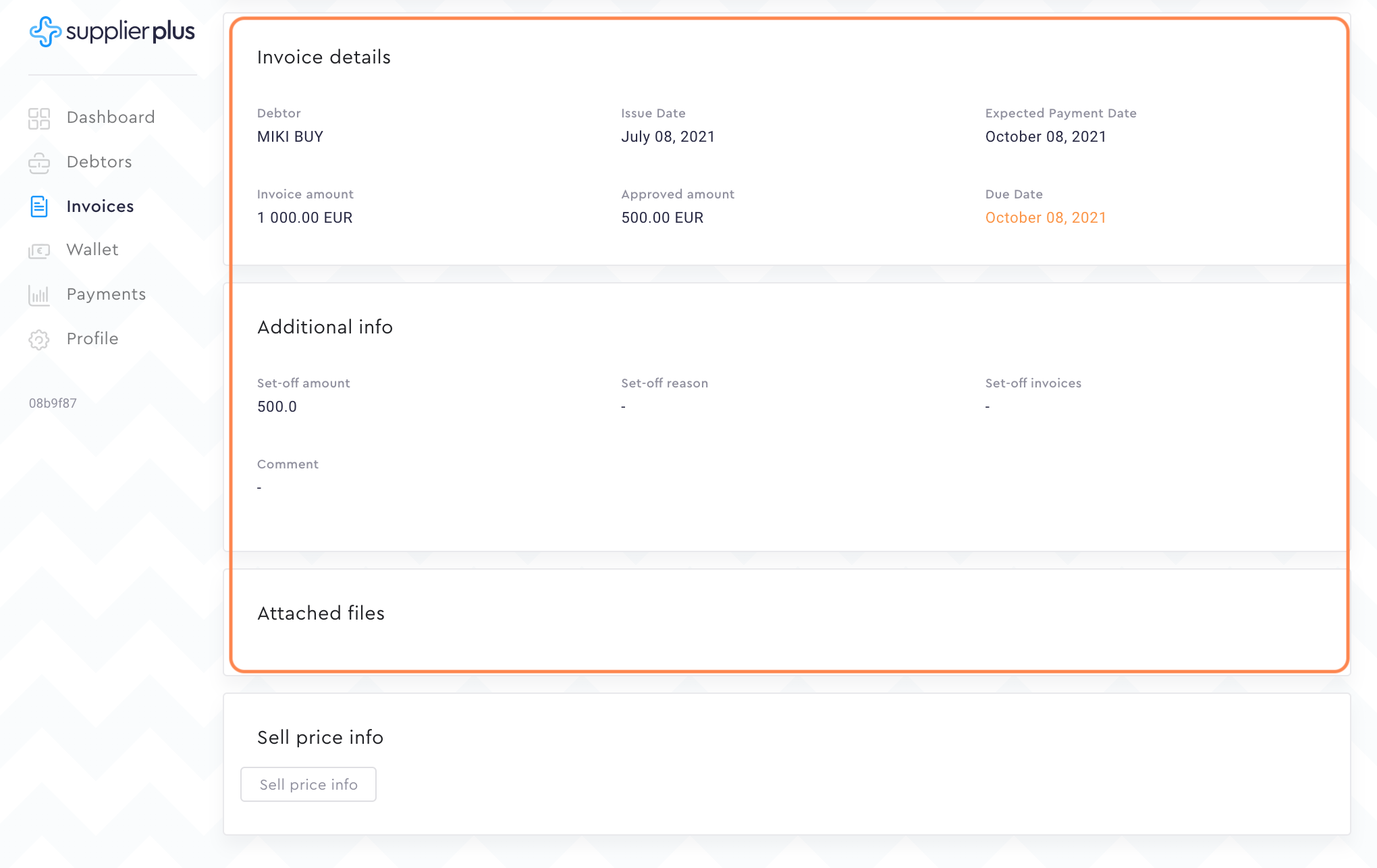
In invoice details, we basically show you the same info as you see in the previous invoice view. In here you just have a better overview of the important dates and amounts.
Additional info
When the debtor uses our settlement feature and approves only part of the full invoice amount, you can see all the necessary inserted data here. So if you see in the invoice view that your nominal amount and approved amount doesn't match, additional info has the answer for you.
Attached files
In case the debtor has added any additional files or original invoices while uploading the invoices, it will be shown in the attached files.
Sell price info
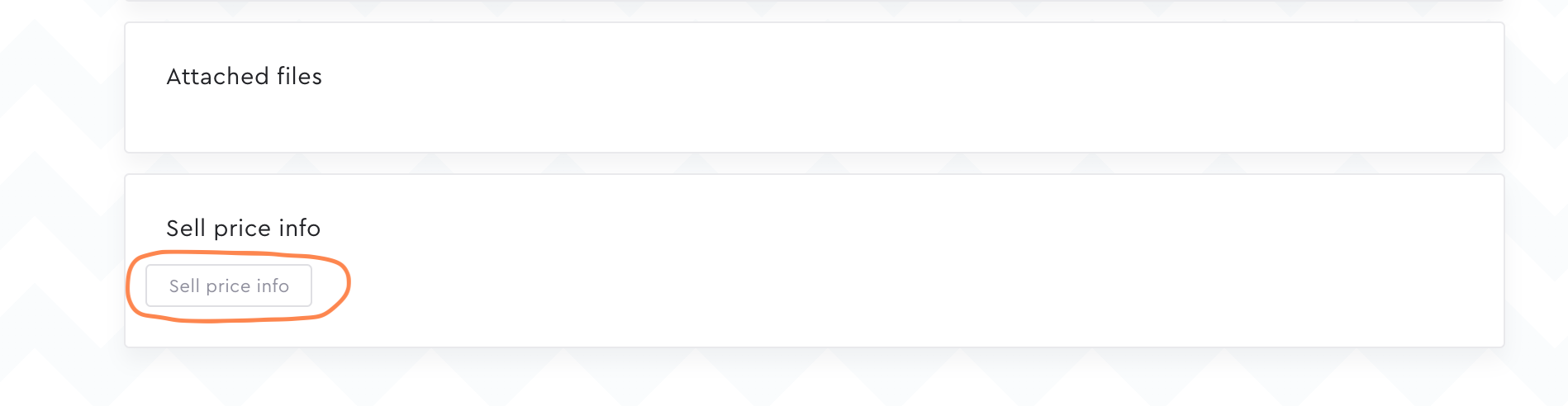
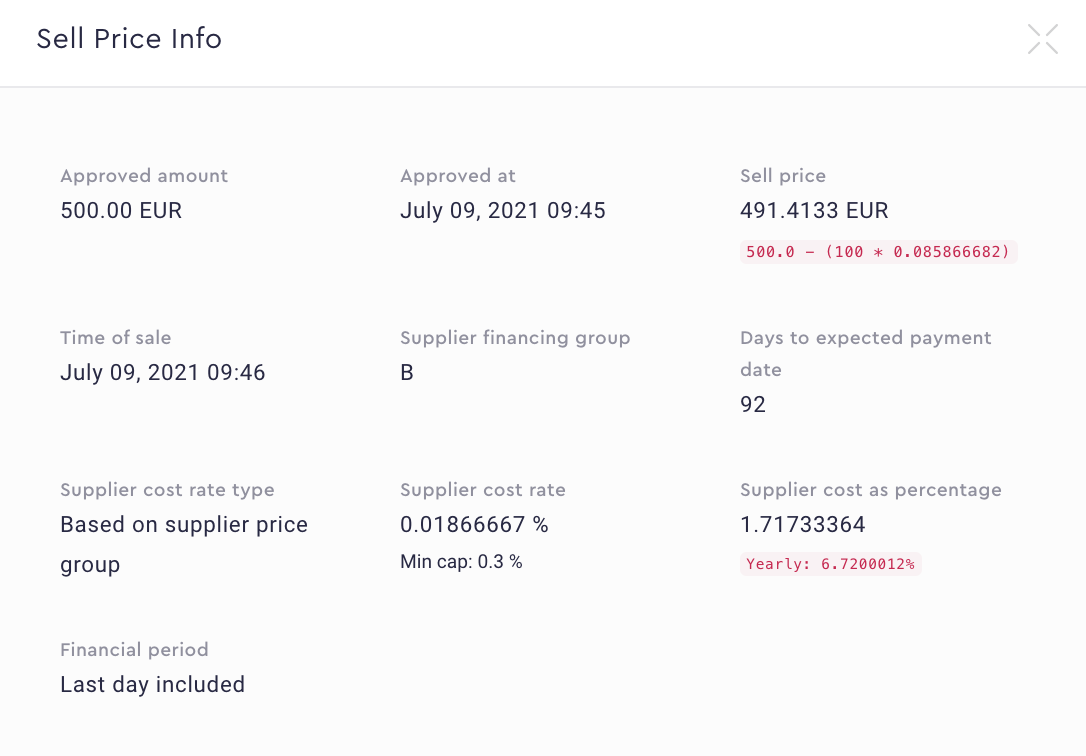
With approved invoices, you can have a chance to see the current sell price by pressing Sell price info. With sold invoices, you can see the exact selling price of the invoice that was sold. We will also show you the formula for how the selling price is being calculated. Also, the financing group and price are according to your sales volume.
Comments
0 comments
Please sign in to leave a comment.